
Introduction
When mobile data suddenly stops working on an iPhone, one setting that often comes up is APN. But what exactly is an APN, and do you really need to change it?
APN stands for Access Point Name. In simple terms, it helps your iPhone identify the network path it should use for cellular data. Some mobile carriers configure this automatically, while others may require specific APN information. Apple says that users can only view or edit APN information when their carrier allows it.
One reason people search for APN settings iPhone is that mobile data may not work after changing SIM cards, switching carriers, setting up a new device, or using a particular cellular plan.
The good news is that checking APN settings is usually straightforward. The important part is using the exact information supplied by your carrier rather than copying random settings from the internet.
What Is APN on iPhone?
APN means Access Point Name. It defines the network path used for cellular data connectivity.
Think of it as an instruction that helps your iPhone communicate with your carrier’s mobile data network.
Your SIM or eSIM identifies your mobile account, while the carrier’s network settings help determine how services such as mobile internet should connect.
For most iPhone users, APN configuration happens automatically. You may never need to touch it.
However, APN settings can become important when mobile data is not connecting correctly or when a carrier specifically tells you to enter particular values.
Apple warns that incorrect APN information can result in loss of cellular data connectivity, so changing these settings should not be treated as a trial-and-error process.
Why Do You Need APN Settings?
Most people never think about APN settings until something stops working.
There are several situations in which they may become relevant.
You Changed Your SIM or Carrier
If you recently inserted a new SIM card or activated an eSIM, your iPhone may need the appropriate carrier configuration.
Apple notes that a new SIM or eSIM can sometimes require network provider settings to be downloaded or configured.
Mobile Data Is Not Working
If calls and text messages work but cellular internet does not, incorrect or missing cellular data configuration can be one possible reason.
That does not automatically mean your APN is wrong, though. Network coverage, account status, carrier outages, and other settings can also cause mobile data problems.
You Are Setting Up a New iPhone
A new device may require carrier configuration before cellular data works normally.
From what is publicly known, Apple generally expects carriers to provide the appropriate settings rather than users manually guessing them.
How to Find APN Settings on iPhone
The exact menu names can vary depending on the iOS version, carrier, and region.
If your carrier permits APN viewing or editing, try these steps:
- Open Settings.
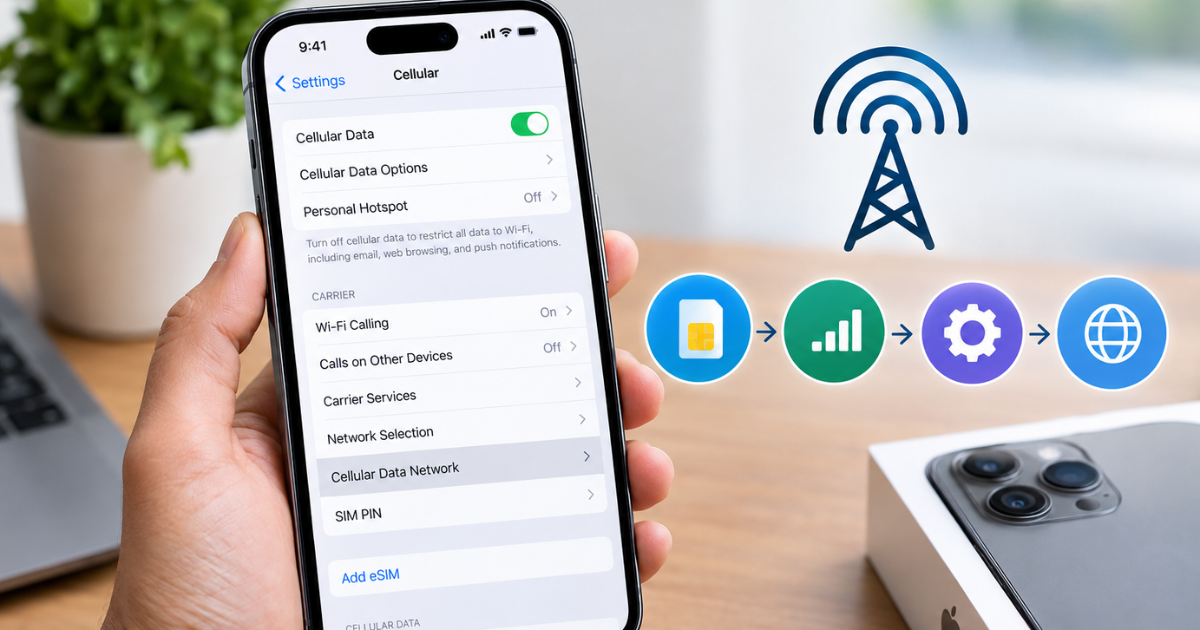
- Tap Cellular or Mobile Data.
- Look for Cellular Data Network or Mobile Data Network.
- If your carrier allows it, you should see APN-related fields.
On some iPhones, the path may appear as:
Settings → Cellular → Cellular Data Network
On other versions or regional configurations, you may see:
Settings → Mobile Data → Mobile Data Options → Mobile Data Network
Apple confirms that not every carrier exposes these options. If you do not see them, that does not necessarily mean something is wrong with your iPhone.
How to Change APN Settings on iPhone
If your carrier has specifically given you APN information, you can enter it in the available fields.
Open:
Settings → Cellular/Mobile Data → Cellular Data Network/Mobile Data Network
Then enter the information supplied by your carrier.
Depending on the carrier, you may see fields related to:
- APN
- Username
- Password
- MMS settings
- Personal Hotspot settings
- Proxy or other network information
Do not assume that every field needs to be filled in.
A common mistake is assuming there is one universal APN that works for every network. There isn’t. APN information is carrier-specific, and using the wrong values can prevent mobile data from working. Apple specifically recommends contacting the carrier to verify the correct information.
After entering the information, the settings generally save automatically.
Should You Change APN Settings Yourself?
Usually, no—not unless your carrier tells you to.
If your cellular data is already working, changing APN settings simply because you found a different configuration online may create a problem that did not exist before.
Apple’s advice is clear: don’t modify APN settings unless instructed by the carrier or a mobile device administrator.
What to Do If APN Settings Are Missing
This is one of the most common questions surrounding APN settings on iPhone.
If you open Cellular or Mobile Data settings and cannot find an APN section, don’t immediately assume your iPhone is defective.
Your carrier may simply control these settings automatically.
Apple states that APN settings can only be viewed or edited when the carrier permits it. If the option is unavailable, Apple recommends contacting the carrier.
You can also check whether a carrier settings update is available.
Check for a Carrier Settings Update
Go to:
Settings → General → About
Wait for a moment after opening the About page. If a carrier settings update is available, iPhone may display a prompt.
Carrier settings updates can improve cellular connectivity and add support for network features. Apple also notes that new SIM or eSIM setups may require updated carrier settings.
How to Reset APN Settings
If your carrier allows manual APN changes and you have entered something incorrectly, you may be able to return the APN information to the carrier defaults.
Go to:
Settings → Cellular → Cellular Data Network → Reset Settings
The exact wording can vary by region and iOS configuration.
Apple says that resetting the APN restores the carrier’s default APN information.
This is often a better approach than continuing to experiment with different APN values.
What If Reset APN Doesn’t Work?
If mobile data is still unavailable, the problem may not be APN-related.
You can consider resetting the broader network settings.
Go to:
Settings → General → Transfer or Reset iPhone → Reset → Reset Network Settings
Be careful with this option. Apple says that resetting network settings removes saved Wi-Fi networks and passwords as well as cellular, VPN, and APN settings.
So this should generally be considered a troubleshooting step rather than the first thing you try.
APN Problems and Common Fixes
If your iPhone shows cellular signal but mobile internet isn’t working, work through the basics before changing APN values.
1. Check Mobile Data
Make sure cellular data is turned on.
Go to:
Settings → Cellular/Mobile Data
Then check whether Cellular Data is enabled.
2. Restart Your iPhone
A simple restart can sometimes resolve temporary network communication problems.
3. Turn Airplane Mode On and Off
Turn Airplane Mode on, wait a few seconds, and then turn it off.
This forces the phone to reconnect to the cellular network.
4. Check for Carrier Updates
Open Settings → General → About and wait for a possible carrier settings update. Apple recommends this when appropriate for network configuration changes.
5. Check Your SIM or eSIM
If you recently changed carriers or activated an eSIM, make sure the correct cellular line is enabled.
6. Contact Your Carrier
If everything appears normal but cellular data still doesn’t work, contact your mobile provider.
They can check whether your account is active, whether there is an outage, and whether your specific plan requires different APN information.
Very little verified information exists about a universal “best” APN for iPhone because APN settings depend on the carrier. That is why copying settings from an unrelated website can sometimes make things worse.
APN Settings vs Network Settings
These two terms are easy to confuse.
APN settings specifically relate to how cellular data connects through your carrier.
Network settings cover a much broader range of connectivity information, including Wi-Fi, cellular configuration, VPN-related settings, and APN information.
Resetting network settings is therefore much more extensive than resetting an APN.
If your carrier gives you a specific APN configuration, follow that instruction first instead of immediately performing a complete network reset.
Quick Facts Table
| Question | Quick Answer |
| What does APN mean? | Access Point Name |
| What does APN control? | The network path used for cellular data |
| Can every iPhone user edit APN? | No, it depends on the carrier |
| Where can APN appear? | Cellular/Mobile Data settings |
| Should you use random APN values? | No |
| Who provides the correct APN? | Your mobile carrier |
| Can APN be reset? | Yes, when the carrier exposes the option |
| Does resetting network settings affect APN? | Yes |
Are Internet APN Settings Always Correct?
Not necessarily.
You will find websites listing APN values for different carriers, but these settings can change and may vary by plan, country, SIM type, or service.
A common mistake is assuming that an APN listed for an Android phone, another country, or a different carrier plan will automatically work on an iPhone.
The safest source is your mobile provider.
If a carrier gives you an APN specifically for your account or plan, use that information rather than relying on an old third-party list.
Does Updating iOS Change APN Settings?
It can.
Apple states that, unless you are using a configuration profile, updating iOS resets changes made manually to APN settings. This means you may need to enter the carrier-provided information again after an iOS update.
This is particularly important if your mobile provider instructed you to manually configure the APN.
If your carrier normally configures everything automatically, you may not need to do anything.
FAQs
1. Where are APN settings on iPhone?
If your carrier allows access, APN settings can usually be found under Settings → Cellular/Mobile Data → Cellular Data Network/Mobile Data Network. Some carriers hide these options.
2. Why can’t I see APN settings on my iPhone?
Your carrier may automatically manage APN settings and prevent users from editing them. Apple says that APN access depends on carrier support.
3. What should my iPhone APN be?
There is no single APN that works for every iPhone. The correct value comes from your mobile carrier and can depend on your plan and network.
4. Can the wrong APN stop mobile data?
Yes. Apple warns that incorrect APN settings can result in loss of cellular data connectivity.
5. How do I reset APN settings on iPhone?
If your carrier provides the option, go to Settings → Cellular → Cellular Data Network → Reset Settings. This restores the carrier’s default APN information.
6. Will resetting network settings delete my photos?
No. Reset Network Settings is not the same as erasing the iPhone. However, it removes network-related information such as saved Wi-Fi networks and passwords and resets cellular, VPN, and APN settings.
7. Do I need APN settings for 5G?
Your carrier normally handles the necessary network configuration. If your provider requires a particular APN, follow its instructions. Carrier settings updates can also add support for network features such as 5G and Wi-Fi Calling.
8. Should I change APN settings if my internet works?
Usually not. If your cellular data is working correctly, there is little reason to change the configuration. Apple recommends changing APN information only when directed by your carrier or device administrator.
Conclusion
Searching for APN settings iPhone usually means one thing: you want your iPhone’s mobile data to work properly.
The important thing to remember is that APN settings are not universal. Your carrier controls whether you can view or change them, and the correct values depend on the network and service you use.
If your iPhone is already connected to mobile data, there is generally no reason to change anything. If data isn’t working, start with simple troubleshooting steps such as checking Cellular Data, restarting the phone, checking for carrier settings updates, and confirming your SIM or eSIM is active.
If your carrier specifically provides APN information, enter exactly what it gives you. And if the APN option doesn’t appear at all, that may simply mean your carrier manages it automatically.
Ultimately, the safest approach is simple: use carrier-provided APN information, avoid random configurations, and reset the settings only when necessary.
That is why this topic continues to get attention online—APN sounds technical, but once you understand what it does, troubleshooting your iPhone’s mobile data becomes much less confusing.
You May Also Like CDiPhone
Share this content: